How to Set Up Welcome Messages in Discord
To set up welcome messages in Discord, open the Appy dashboard, go to Welcome messages, pick a channel, turn on Welcome enabled and write your message using variables like {userMention} and {serverName}. Appy posts it every time someone joins. Leave messages work the same way, from the Leave messages page.
Discord's built-in options vs a welcome bot
Discord already has a few welcome features. It's worth knowing what each one does before you add a bot:
- System messages (Server Settings → Overview): Discord's random "X just showed up!" messages. You can't change the wording.
- Welcome Screen (Community servers): a pop-up when someone joins, pointing them to a few channels.
- Onboarding (Community servers): questions that give new members channels and roles before they see the server.
A bot welcome message adds the part those don't: a message in your own words, posted in a channel everyone sees, that you can point at your rules, roles or intro channel. Use Onboarding for channel and role picks, then turn off Discord's system messages and let Appy post the welcome.
Step 1: Pick the channel and turn it on
In the dashboard, go to Welcome messages.
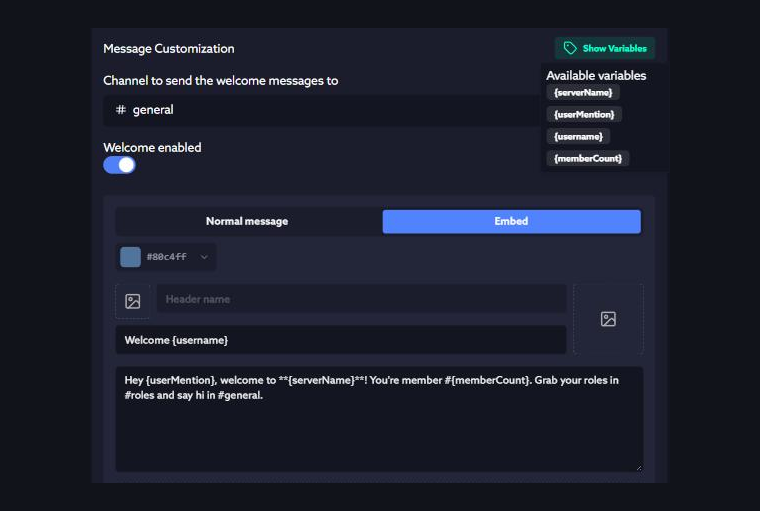
- Channel to send the welcome messages to: usually
#welcomeor#general. A dedicated#welcomechannel stays tidy, but welcomes in#generalget more replies from existing members. - Welcome enabled: switch it on.
- Normal message / Embed: a plain message or an embed with a colour, title, image and footer.
Step 2: Write the message with variables
Click Show Variables to see what you can insert:
{userMention}: mentions the new member, e.g. @alex.{username}: their username as plain text.{serverName}: your server's name.{memberCount}: how many members your server has, including them.
The Message Preview shows how the message will look:
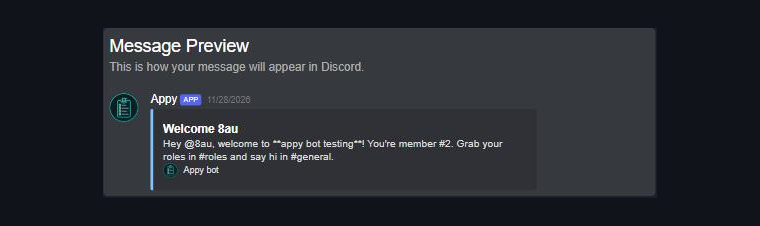
Click Save.
Embed or normal message? Embeds look tidier and support an image, but a mention inside an embed doesn't notify the person. If you want the new member to get a ping, use a normal message, or put {userMention} in a normal message above the embed.
5 welcome messages you can copy
Short welcomes get read. Long ones get scrolled past. Pick the one closest to your server and edit it:
- Gaming server:
Welcome {userMention}! 🎮 Grab your game roles in #roles and find a squad in #lfg. - Study or learning server:
Hi {userMention}, welcome to {serverName}. Introduce yourself in #introductions and check #resources to get started. - Creator or fan server:
{userMention} just joined! You're member #{memberCount}. New videos are posted in #announcements. - Support or product server:
Welcome {userMention}. Search #faq first, and if you're still stuck, open a ticket in #support. - Roleplay server:
Welcome, {userMention}. Read #rules and #lore, then post your character in #character-submissions.
Each one tells the new member exactly where to go next. That one line is what makes a welcome message useful rather than noise.
Step 3: Set up leave messages (optional)
Go to Leave messages to post a message when someone leaves. Setup is the same: pick a channel, switch on Leaver enabled and write the message with the same variables.
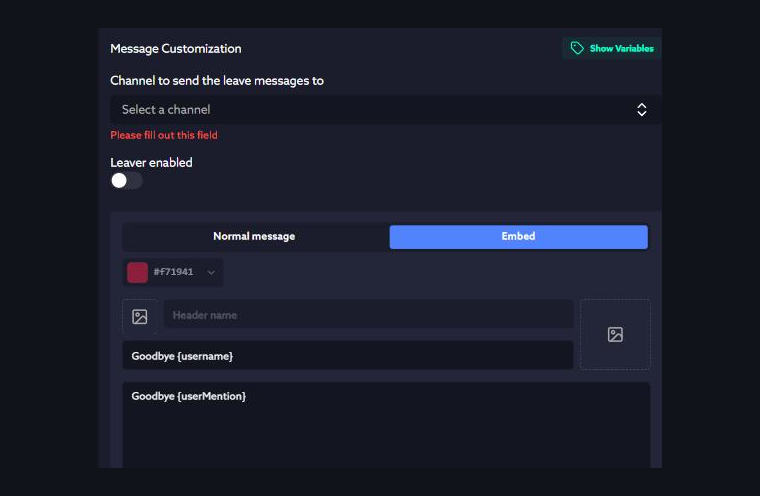
Leave messages are most useful in a private staff channel like #member-log. They help staff spot a wave of leaves after an announcement, or a raid of accounts joining and leaving. Posting goodbyes publicly is a matter of taste. In big servers, they're mostly noise.
Troubleshooting
The welcome message isn't sending. Check the channel is set and Welcome enabled is on, then make sure Appy can View Channel, Send Messages and Embed Links in that channel.
The member isn't being pinged. Mentions inside embeds don't notify. Use a normal message.
Welcomes are posted for raid bots. Put captcha verification in front of the server so bots are stopped at the door. See our captcha verification guide.
FAQ
Are Appy's welcome messages free? Yes. Welcome and leave messages are free.
Can I add an image to the welcome message? Yes. Switch to Embed and add an image, thumbnail or footer icon.
Can I give new members a role when they join? Yes. That's a separate feature, auto roles. See our guide to automatically giving roles to new members.
Can I see who joined and left? Post leave messages in a private staff channel, and the welcomer tab on Appy's Analytics page charts welcome and leave messages over time.
