How to Manage Discord Tickets as a Team: Claiming, Quick Responses and Ratings
Once tickets are set up, the problems change. Two moderators reply to the same ticket, everyone types the same answer to the same question, and nobody knows whether members are happy with the help they get. Appy has a fix for each:
- Ticket claiming: one staff member owns each ticket.
- Quick responses: saved replies sent from Discord's right-click menu.
- Support ratings: members rate the help they got when the ticket closes.
- Transcripts and the ticket overview: a record of every ticket and how your team is doing.
If you haven't set up tickets yet, start with our guide to setting up a ticket system in Discord.
Ticket claiming: one owner per ticket
Claiming lets a staff member take a ticket with the claim button or /ticket claim, so the rest of the team knows it's handled. /ticket unclaim hands it back.
Turn it on per template: Tickets → Templates → edit → Ticket Claiming. Then choose a Claim mode:
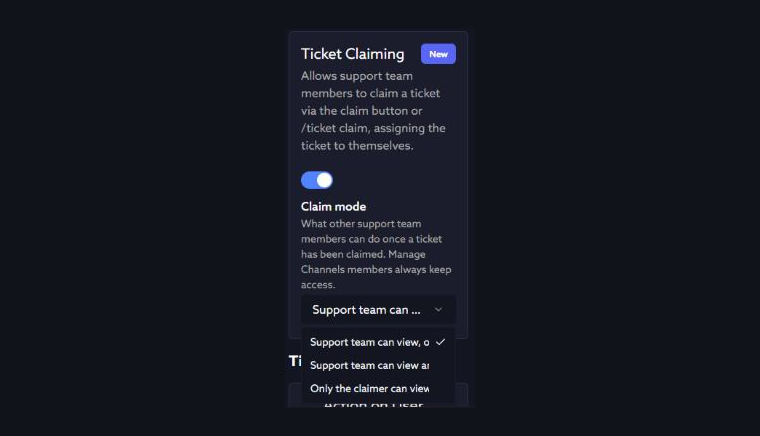
- Support team can view, only claimer can reply: the best default. Others can follow along and step in by claiming if needed, but they can't reply over the top of their colleague.
- Support team can view and reply: claiming is just a label. Good for small, informal teams.
- Only the claimer can view: the ticket is hidden from everyone but the claimer. Use it for sensitive tickets like reports about other staff, appeals or personal information.
Members with Manage Channels can always see claimed tickets, whichever mode you pick.
Team habit that makes claiming work: claim before you reply, unclaim when you go offline. A claimed ticket nobody is working on is worse than an unclaimed one.
Quick responses: answer common questions in two clicks
Every support team answers the same five questions over and over. Quick responses let you save those answers once and send them from Discord.
Create them in Tickets → Quick Responses → Add Response. Each needs a name, the content and a category:
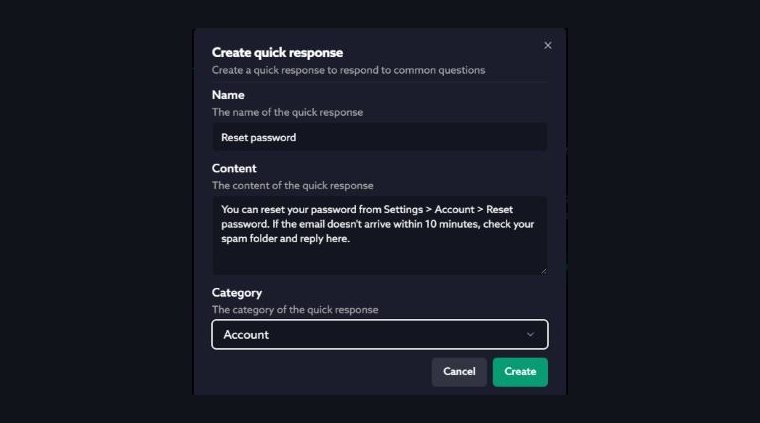
To use one in Discord, right-click (or long-press on mobile) the member's message, open Apps → Quick Responses, pick a category and choose the reply:

Appy posts the saved answer as a reply to that message:

Free servers can save up to 50 quick responses. Group them into categories like Account, Billing and Bugs so staff can find them quickly.
Quick responses worth saving first
- "How do I…?" basics: the 3–4 questions that make up most of your tickets.
- "We need more information": "Can you send a screenshot of the error and tell us what you were doing when it happened?"
- "This is a known issue": link to your status page or announcement.
- "Wrong place": "This ticket type is for billing. I've moved it to General Support." (with
/ticket move) - "Closing due to inactivity": "We haven't heard back in 48 hours, so we're closing this. Open a new ticket any time."
Write them in your team's normal voice and edit them before sending when a ticket needs a personal touch.
Support ratings: find out how you're doing
Turn on Rate Support Experience on a template, and when a ticket closes, the member is asked to rate the help they got and leave feedback.
Use ratings to spot patterns: a ticket type that always scores low probably needs a better process or a quick response, not a stricter moderator. Avoid using individual ratings to punish staff, or people will start avoiding hard tickets.
Transcripts and the ticket overview
When a ticket closes, Appy posts a log in the template's Ticket Logging Channel, and the ticket is saved under Tickets → Transcripts. The overview page shows:
- Open and closed ticket counts, and total messages.
- Opened and closed tickets over time, and the average time to close a ticket.
- Each staff member's tickets closed, messages sent and average rating.
- A searchable list of past tickets, filterable by status, template, rating and date.
Images and files sent in tickets are only kept in transcripts on premium (Store Transcript Images), because storing media costs money to host.
Keep your logging channel private to staff. Transcripts often contain personal details members only meant for your team.
Ticket Quality AI (premium)
A lot of tickets start with "hi" or "help" and nothing else. Ticket Quality AI, on each template, checks whether the member has explained their problem, and if not, asks them to add more detail before staff pick it up. You set how confident it must be before it prompts.
Other commands that save time
/ticket move: send a ticket to another category, e.g. from General Support to Billing, so the right team sees it./ticket user add: bring in a second moderator or the member being reported./ticket rename: add a tag like-urgentor-waitingso the channel list shows status at a glance./ticket autoclose-exclude: stop a ticket from auto closing while you wait on something./ticket close reason:…: close with a reason the member can see.
FAQ
Can members see who claimed their ticket? Yes. Appy posts a message in the ticket when someone claims it.
What happens to claims if a staff member leaves the server? Appy unclaims their tickets automatically so a teammate can pick them up. While they're still around, only the claimer or someone with Manage Channels can unclaim a ticket.
Are quick responses free? Yes, up to 50 per server.
Where can I see past tickets? Under Tickets → Transcripts in the dashboard, and in your ticket logging channel.
See everything Appy can do for support teams on the Discord ticket bot page.
