How to Set Up AI Moderation on Discord (vs Discord AutoMod)
AI moderation reads what a message means instead of matching banned words, so it catches insults, threats and hate speech written in ways a word filter misses. To set it up with Appy, go to AI auto moderation in the dashboard, turn it on, choose the categories to detect, set how confident Appy must be before acting, and pick what happens to flagged messages. AI auto moderation is a premium feature.
Discord AutoMod vs AI moderation
Discord's built-in AutoMod (Server Settings → Safety Setup → AutoMod) is free and you should use it. It's good at:
- Blocking specific words and phrases you list.
- Stopping mention spam and suspected spam.
What it can't do is understand context. "You should just quit the game forever, nobody wants you here" contains no banned words. Neither do most real threats or targeted bullying. People also get around word lists with spacing, misspellings and lookalike letters.
AI moderation fills that gap. It looks at the whole message and judges whether it's harassment, hate, self-harm, sexual content or violence, however it's spelled.
Use both. AutoMod handles your word list and spam instantly. AI moderation catches what the word list can't.
What Appy's AI moderation detects
Each category can be turned on separately:
- Harassment: insults, bullying and threats aimed at another person.
- Hate speech: attacks on people for who they are, such as their race, religion, gender or sexuality.
- Self-harm: messages that promote or describe self-harm or suicide.
- Sexual content: sexually explicit messages.
- Violence: threats of violence and graphic descriptions of it.
Step 1: Turn it on and pick categories
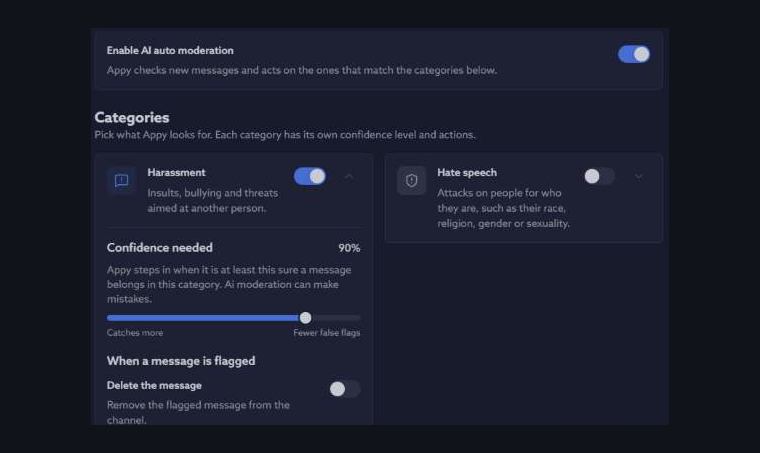
In the dashboard, go to AI auto moderation, switch on Enable AI auto moderation, then switch on the categories you want.
Step 2: Set the confidence level
Click a category to expand it. Confidence needed is how sure Appy must be before it acts:
- Higher (90%+): fewer false flags, but some borderline messages get through.
- Lower (70–80%): catches more, but jokes and friendly banter get flagged more often.
Start high. It's much easier to lower the bar after a week than to apologise to members who were timed out for a joke. Gaming and banter-heavy servers usually need a higher threshold for harassment than support or study servers.
Step 3: Choose what happens to flagged messages
Under When a message is flagged, pick one or more actions per category:
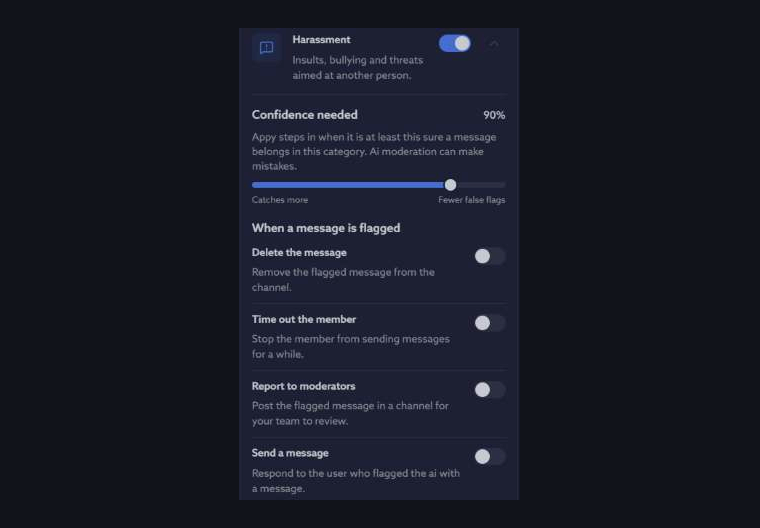
- Delete the message: removes it from the channel.
- Time out the member: stops them sending messages for a while.
- Report to moderators: posts the flagged message in a staff channel for review, optionally pinging a role.
- Send a message: replies to the member, e.g. with a reminder of your rules.
A safe rollout:
- Week 1: report only. Turn on Report to moderators for every category and nothing else. Watch what gets flagged.
- Check the flags. If the reports are mostly real problems, the confidence level is right. If they're mostly banter, raise it.
- Week 2: add delete. Turn on Delete the message for categories that are reliably accurate, keeping the report on so staff can see what was removed.
- Add timeouts only where you're sure. Timeouts for hate speech and serious threats are reasonable. Timeouts for mild harassment flags usually cause more arguments than they stop.
Self-harm is different. Someone posting about self-harm usually needs support, not a punishment. For that category, use Report to moderators plus Send a message pointing them to your server's support channel or a helpline, and don't time them out.
Step 4: Add exemptions
Under Exemptions:
- Ignored roles: members with these roles are never moderated. Add your staff roles, so moderators quoting a rule-breaker don't get flagged themselves.
- Ignored channels: messages in these channels are never checked, e.g. a private
#staffchannel, or an 18+ channel where the rules are different.
Click Save.
What AI moderation won't do
It's a tool for your moderators, not a replacement for them:
- It makes mistakes. Sarcasm, quotes, in-jokes and reclaimed slurs can all be misread. Keep a human reviewing reports.
- Context outside the message is invisible. It judges one message, not the history between two members.
- Slang moves fast. New coded terms can slip through until the models catch up. Keep your AutoMod word list for those.
Troubleshooting
Too many false flags. Raise the confidence level for that category, or add the channel where banter happens to Ignored channels.
Staff are getting flagged. Add staff roles to Ignored roles.
Nothing is being flagged. Check AI auto moderation is enabled, the category is switched on, the channel isn't ignored, and Appy can see the channel.
Appy can't time members out. Appy needs the Moderate Members (timeout) permission, and its role must be above the member's highest role.
FAQ
Is AI moderation free? No, it's part of Appy Premium.
Does it read every message? It checks new messages in channels Appy can see, except ignored channels and messages from ignored roles.
Will it punish my moderators? Not if you add staff roles to Ignored roles.
Does it replace Discord's AutoMod? No. Use both: AutoMod for word lists and spam, AI moderation for context.
