How to Add Reaction Roles in Discord (with Buttons)
To add reaction roles in Discord, create a reaction role in the Appy dashboard, write the message, add a button for each role, pick the channel and save. Appy posts the message, and members click a button to get that role or click it again to remove it.
Most reaction role guides have you turn on Developer Mode, copy a message ID and paste emojis into a bot's settings. Appy builds the message for you, so you skip all of that.
Buttons vs emoji reactions
Old-style reaction roles use emoji reactions under a message. Appy uses buttons instead, which work better in a few ways:
- Labels are clear. A button that says "Events" needs no explaining. A 🎉 reaction does.
- Members get confirmation. Appy tells them which role was added or removed, only visible to them.
- They work well on mobile. Reactions are fiddly to tap and easy to hit by accident.
- Nobody messes up the message. With reactions, anyone can add random emojis under your role message.
What you need first
- The roles you want people to pick, created in Server Settings → Roles.
- Appy's role above all of them. Bots can only give roles below their own role. This is the most common reason reaction roles "don't work".
Free servers get 1 reaction role message, and premium servers up to 50. Each button can give up to 5 roles.
Step 1: Create a reaction role
In the dashboard, go to Reaction Roles and click New Reaction Role. Give it a name you'll recognise, like "Notification roles". Members don't see this name. Then click the edit button.
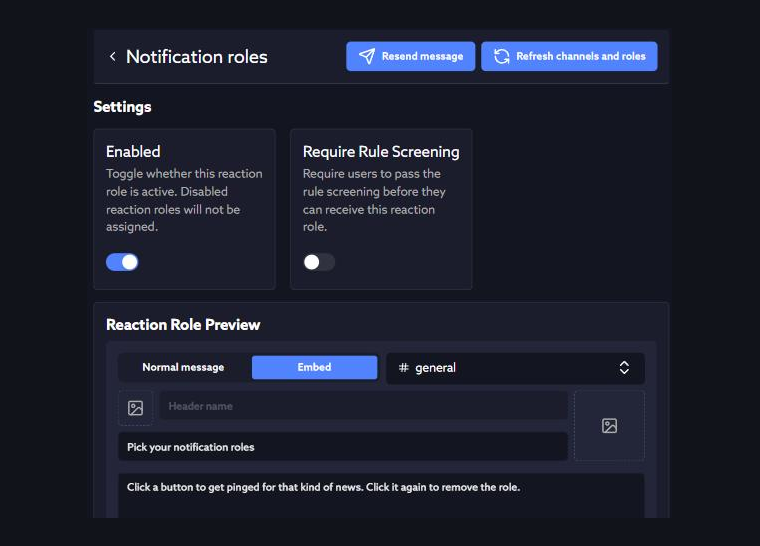
- Enabled: switch off to stop giving roles without deleting the message.
- Require Rule Screening: if your server uses Discord's rules screening, members must accept the rules before the buttons work.
- Normal message / Embed: a plain message or an embed with a title, description, image and footer.
- Channel: where the message is posted, e.g.
#rolesor#get-roles.
Write a title and a one-line description that tells people what the buttons do.
Step 2: Add a button for each role
Scroll down and click Add Button. For each button, set:
- The role (or roles) it gives.
- The label members see.
- An emoji (optional).
- A colour: blurple, grey, green or red.
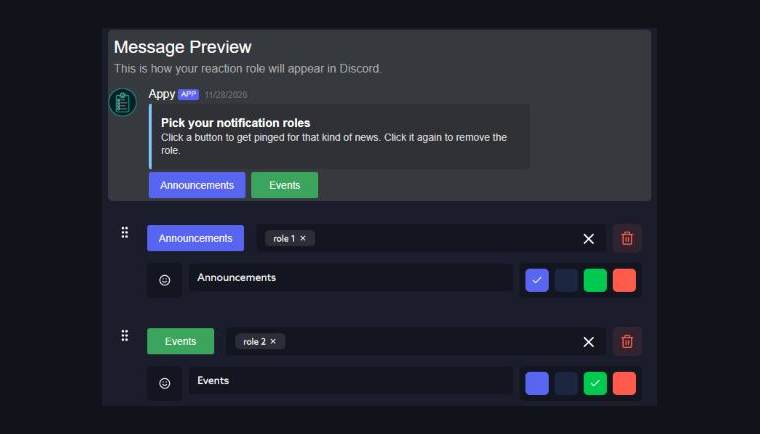
The Message Preview at the top updates as you go. Click Save, and Appy posts the message to your channel. If you edit it later, click Resend message to post the updated version.
Step 3: Try it in Discord
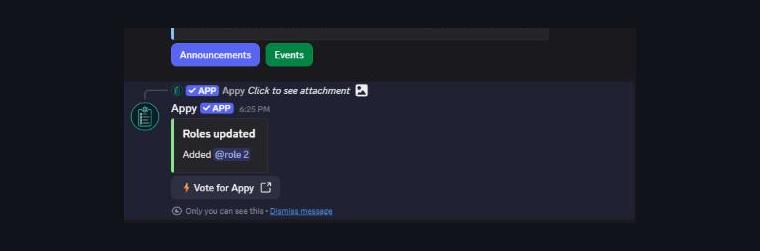
Here's how the message looks in Discord:

When a member clicks a button, Appy confirms the change in a message only they can see. Clicking the same button again removes the role.
Reaction role ideas that work
- Notification roles: Announcements, Events, Giveaways, Patch notes. Ping
@Eventsinstead of@everyone, and people stop muting your server. - Game roles: one button per game, each unlocking that game's channels.
- Pronoun roles: he/him, she/her, they/them, ask me.
- Region or timezone: EU, NA, Asia, OCE. Helps people find others to play or talk with at the same time.
- Colour roles: purely cosmetic, and a nice perk to put behind a level role.
Keep each message to one topic. A message with 25 buttons covering pronouns, games and pings is hard to read. Several short messages in a #roles channel work better (premium allows up to 50).
How role hierarchy works
Discord only lets a bot manage roles below its own highest role. If Appy's role is under Events in your role list, Appy can't give Events to anyone, however the buttons are set up.
To fix it, open Server Settings → Roles and drag Appy's role above every role you hand out with buttons. You don't have to put it at the very top, just above those roles.
Troubleshooting
The button does nothing or says it failed. Check the role hierarchy above and that Appy has the Manage Roles permission.
Members get the role but can't see the channel. The role works, but the channel's permissions don't include it. Give the role View Channel in that channel or category.
The message disappeared. If someone deleted it, click Resend message in the dashboard.
I want different buttons for different people. Use separate reaction role messages in channels only certain roles can see.
FAQ
Do I need Developer Mode or a message ID? No. Appy creates and posts the message for you.
Can one button give more than one role? Yes, up to 5 roles per button.
Can members remove a role themselves? Yes. Clicking the button again removes it.
Does it work on mobile? Yes. Buttons work the same on desktop, mobile and web.
Is it free? Yes. Free servers get 1 reaction role message, and premium servers get up to 50.
Want new members to get a role automatically, without clicking anything? See our guide to auto roles.
