How to Set Up Captcha Verification on Your Discord Server
To set up captcha verification on Discord, turn on verification in the Appy dashboard, pick a verification method and choose the role members get once they pass. Appy gives every new member an Unverified role that can only see a #verification channel. When they complete the captcha, Appy swaps that role for your verified role and the rest of the server unlocks.
Why use captcha verification?
Raids on Discord are usually run with automated accounts that join and spam within seconds. A captcha stops them before they can post anything, because a script can't get past it.
Discord has its own verification levels (Server Settings → Safety Setup), which require a verified email or phone number, or a waiting period before new accounts can chat. They're worth turning on, but they don't stop accounts that already have a verified email, and they don't check for a human.
Use both. Set Discord's verification level to at least Medium (verified email, registered for 5+ minutes), and use Appy's captcha to check there's a person behind the account.
What you need first
- Appy in your server. Invite it from appy.bot and log in to the dashboard with Discord.
- A verified role, e.g.
MemberorVerified, with access to your normal channels. - Appy's role near the top of your role list. Appy needs to manage both the
Unverifiedrole it creates and your verified role.
Step 1: Turn on verification and choose a method
In the dashboard, go to Security → Verification and switch on Enabled. Then pick a Verification method:
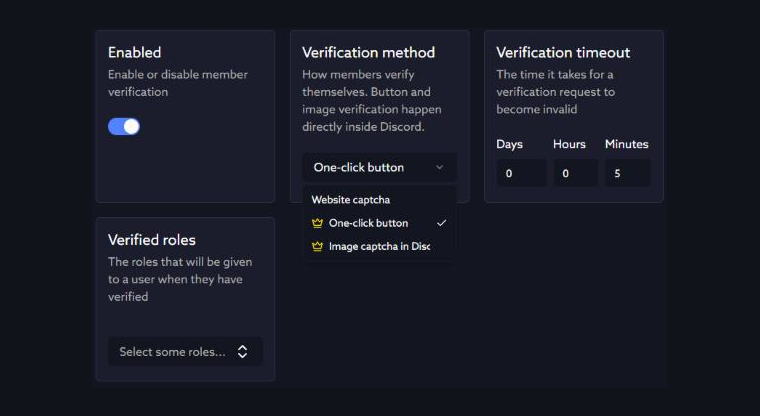
- Website captcha (free): members click a link in
#verificationand solve a captcha on appy.bot. It's the strongest option, because the check happens outside Discord. - One-click button (premium): members click a button in Discord and they're in. The least friction, but it only stops the simplest bots.
- Image captcha in Discord (premium): members type the code from an image, without leaving Discord.
For most public servers, the website captcha is the right default. If you get complaints about leaving Discord to verify, the image captcha is a good middle ground.
Step 2: Pick the role members get after verifying
Under Verified roles, add the role that unlocks your server.
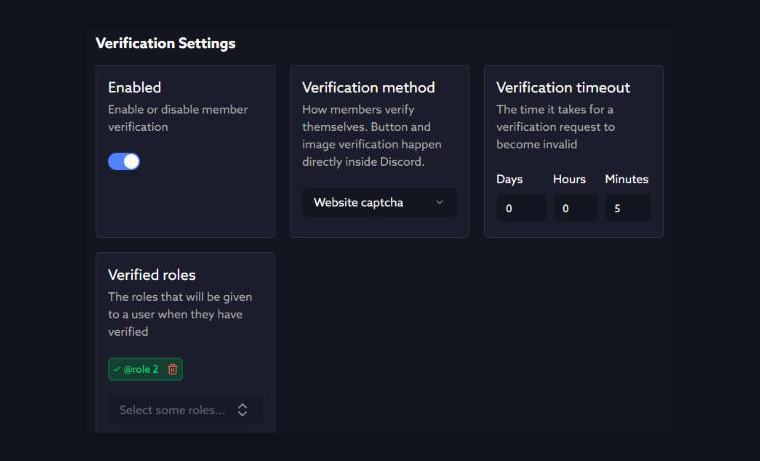
Free servers can give 1 verified role, and premium servers up to 5, for example Member plus a New role you remove after a week.
Verification timeout is how long a verification link stays valid. 5 minutes is plenty. If someone takes longer, they can just start again.
Click Save.
What Appy does when you turn it on
When you enable verification, Appy sets up the lockdown for you:
- It creates an
Unverifiedrole. - It hides every existing channel from
Unverified. - It creates a
#verificationchannel thatUnverifiedcan read but not type in, and posts the verification panel there. - Every new member gets
Unverifiedwhen they join, so all they can see is#verification. - When they pass the captcha, Appy removes
Unverifiedand gives them your verified role(s).
Channels you create later aren't locked automatically. When you add a new channel, deny View Channel for Unverified, or sync it with a category that already does.
Step 3: Customise the messages
Under Message Configuration you can edit the three messages members see:
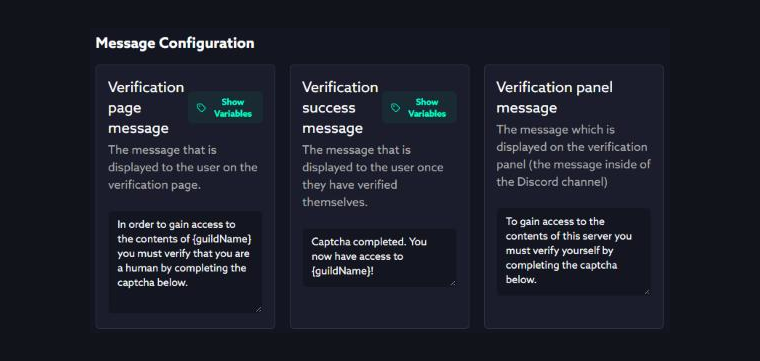
- Verification page message: shown on the captcha page.
- Verification success message: shown once they've verified.
- Verification panel message: the message in
#verification.
Use {guildName} to insert your server's name. Keep the panel message short and specific: "Click below and complete the captcha to unlock the server. It takes about 10 seconds." People skim this, so don't put your rules here.
Step 4: Test it with an alt account
Join your server with a second account. You should only see #verification. Complete the captcha and check the rest of the server appears. Testing as the owner or an admin doesn't work, because admins can see every channel anyway.
Troubleshooting
Members verify but don't get the role, or a role shows a warning in the dashboard.

This is role hierarchy. Bots can only give and remove roles below their own. Open Server Settings → Roles, drag Appy's role above Unverified and your verified roles, then refresh the dashboard.
New members can see channels they shouldn't. Check whether the channel was created after you turned verification on, and whether a role new members already have (like an auto role) grants View Channel. Auto roles should be cosmetic, not access roles.
New members can't see #verification. Make sure Unverified has View Channel and Read Message History in that channel, and that a category permission isn't overriding it.
Verification links say they've expired. Raise the verification timeout, or ask the member to click the panel again for a fresh link.
FAQ
Is Appy's verification bot free? Yes. Website captcha verification is free with 1 verified role. Premium adds the one-click button and image captcha methods and up to 5 verified roles.
Does captcha verification stop alt accounts? It stops automated accounts. A real person with a second account can still pass a captcha. Combine it with Discord's verification level and minimum account age limits on features like tickets.
Will verification annoy real members? It adds one step, about 10 seconds. Most members won't mind, especially if your panel message says why it's there.
Do I still need Discord's built-in verification level? Yes. They check different things, so use both.
Want more detail on what Appy's verification can do? Check out the Discord verification bot page.
