How to Set Up a Ticket System in Discord (2026 Guide)
To set up tickets in Discord, add Appy to your server, create a ticket template that decides where tickets go and who can see them, then send a ticket panel to a channel. When a member clicks the panel's button, Appy opens a private channel that only they and your support team can see.
The template/panel split is the part most people get stuck on, so here's the short version:
- A template is how a ticket behaves. Which category it opens in, which staff role can see it, what questions to ask, who's allowed to open one.
- A panel is the message members click. It lives in a channel like
#open-a-ticketand has one button for each template linked to it.
You can link several templates to one panel ("General help", "Report a player", "Billing"), and each template can have its own staff and settings.
What you need first
- Appy in your server. Invite it from appy.bot and log in to the dashboard with Discord.
- A category for tickets, e.g.
tickets. New ticket channels are created inside it. - A support role, e.g.
Support Team. Members with this role can see and reply to tickets. - Appy's role above the roles it manages. In Server Settings → Roles, drag Appy's role above your support role. Most "tickets don't work" problems come down to this.
Tickets are free. On the free plan you get 2 ticket templates, 1 ticket panel and 1 support role per template. Premium raises that to 50 templates, 50 panels and 20 support roles.
Step 1: Create a ticket template
In the dashboard, open your server and go to Tickets → Templates, then click New Template. Give it a name members will recognise, because this becomes the button label on your panel.
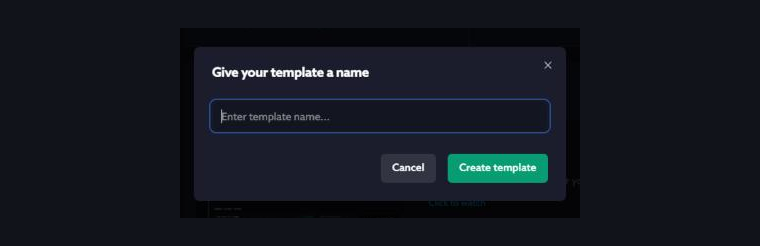
Click the edit button next to the new template to open its settings.
Step 2: Pick the category, logging channel and channel name
The top of the template has the settings every ticket needs:
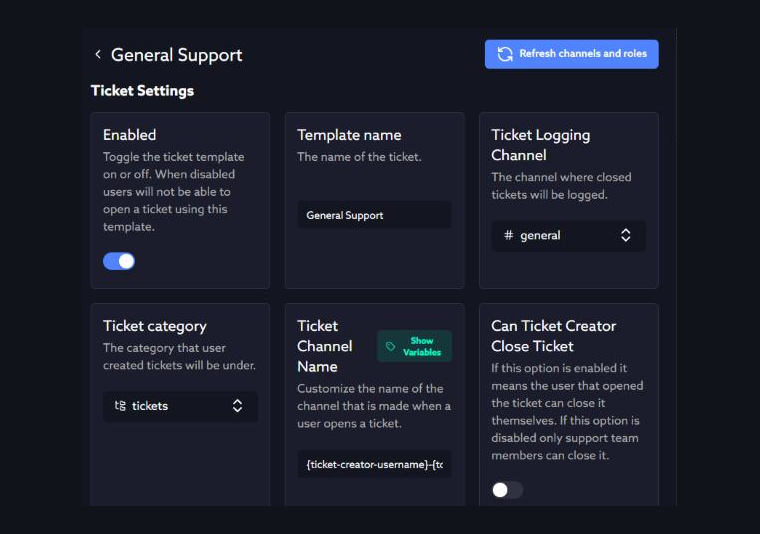
- Ticket category: the category new ticket channels are created in.
- Ticket Logging Channel: where a record of each ticket is posted when it's closed. Use a private staff channel like
#ticket-logs, not a public one. - Ticket Channel Name: click Show Variables to build the name from
{ticket-creator-username},{ticket-creator-nickname},{ticket-category-name}and{total-tickets-opened}. Something like{ticket-creator-username}-{total-tickets-opened}gives you channels such asalex-42, which are easy to search later. - Can Ticket Creator Close Ticket: turn this on if members can close their own ticket once they're sorted. Leave it off if you want staff to confirm every ticket is resolved.
Step 3: Add your support team and spam limits
Scroll to Support Team & Permissions and add your support role under Support Team Roles. Turn on Ping Support Roles if you want staff pinged when a ticket opens. On a busy server you may prefer to leave it off and check the tickets category instead.
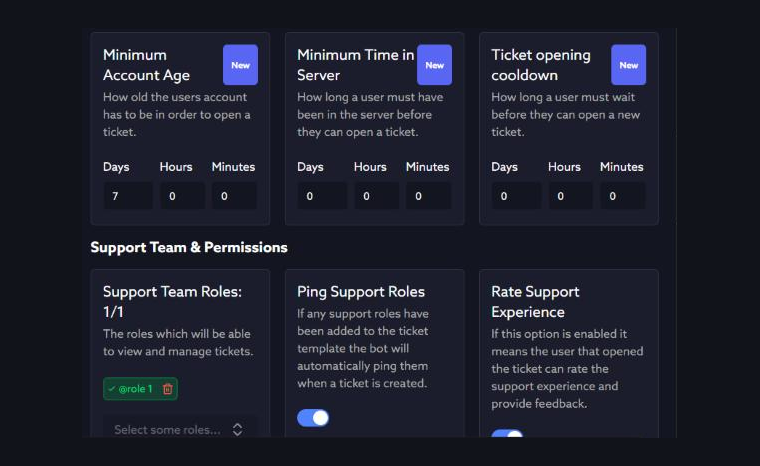
Just above that are three settings that stop throwaway accounts from flooding you with tickets:
- Minimum Account Age: the Discord account must be at least this old. 7 days blocks most alt accounts without bothering real members.
- Minimum Time in Server: how long someone must have been in your server first.
- Ticket opening cooldown: how long a member must wait between tickets.
Max concurrent open tickets limits how many tickets one person can have open at once. 1 is right for most servers.
You can also use Blocked Roles (e.g. a Ticket banned role) and Required Roles (e.g. only Verified members can open tickets).
Step 4: Ask questions before the ticket opens (optional)
Under Ticket Form, add questions members must answer when they click the button. Their answers are posted at the top of the ticket, so staff don't have to start with "what's the problem?".
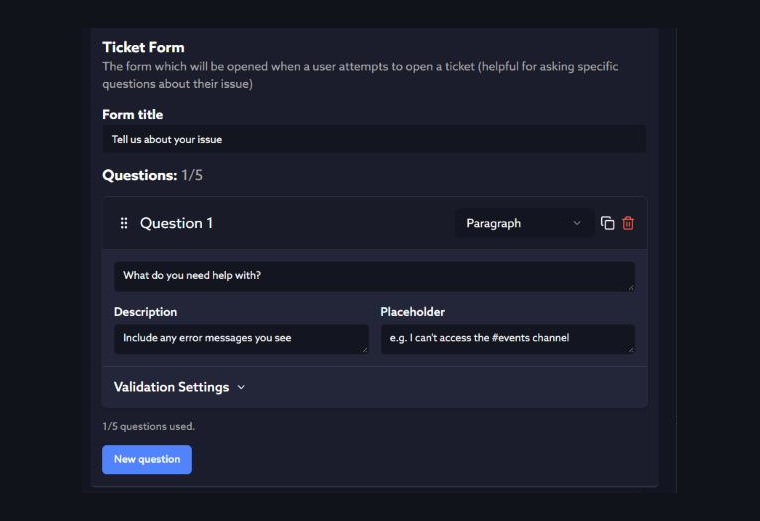
Each question can be a short answer or a paragraph, with a description and a placeholder example. You can add up to 5 questions. That's Discord's limit for pop-up forms, not Appy's. Keep it to 1–3 questions. Every extra question is another reason someone gives up and asks in #general instead.
Click Save when you're done.
Step 5: Create and send a ticket panel
Go to Tickets → Panels and click New Panel, then open it with the edit button.
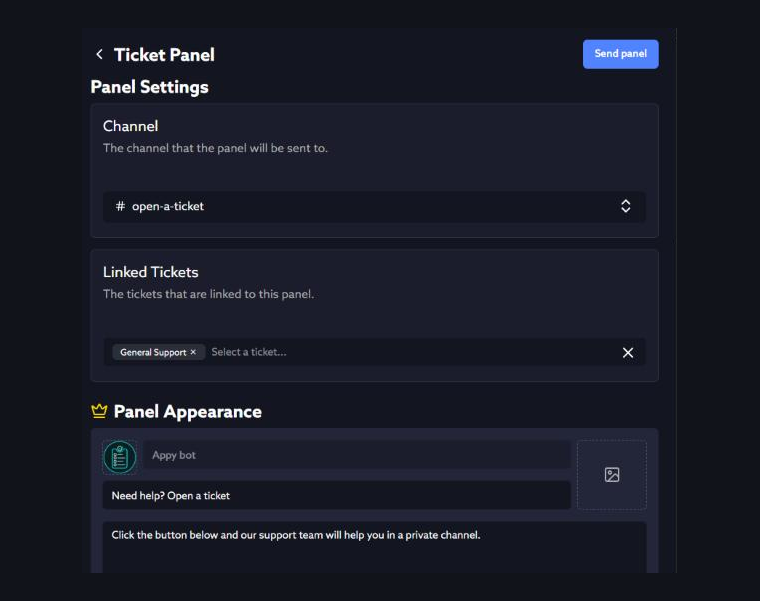
- Channel: where the panel message is posted, e.g.
#open-a-ticket. - Linked Tickets: the templates that get a button on this panel.
- Panel Appearance: the title and description of the panel message. Tell people what tickets are for ("Billing questions, player reports and bugs") so they don't open one to say hi.
Click Save, then Send panel. Here's what members see:
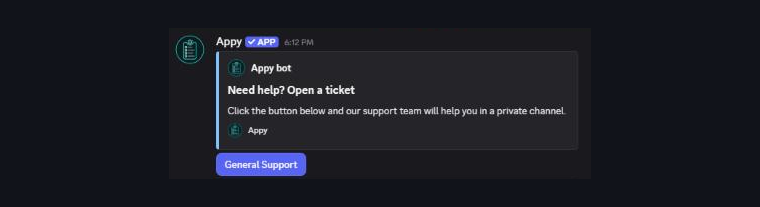
Panels with buttons are free. Select-menu panels (one dropdown with many ticket types, handy once you have more than 3–4 templates) are a premium feature.
Step 6: Test it as a member
Click the button yourself. If the template has a form, it pops up first:
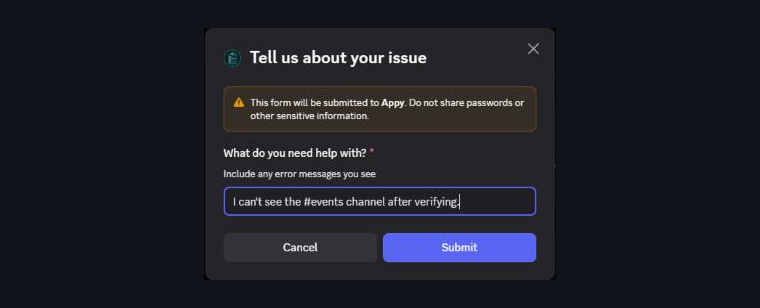
After submitting, Appy creates a private channel in your ticket category. It shows who opened it, their answers and which support team can see it, with Close and Close with reason buttons:
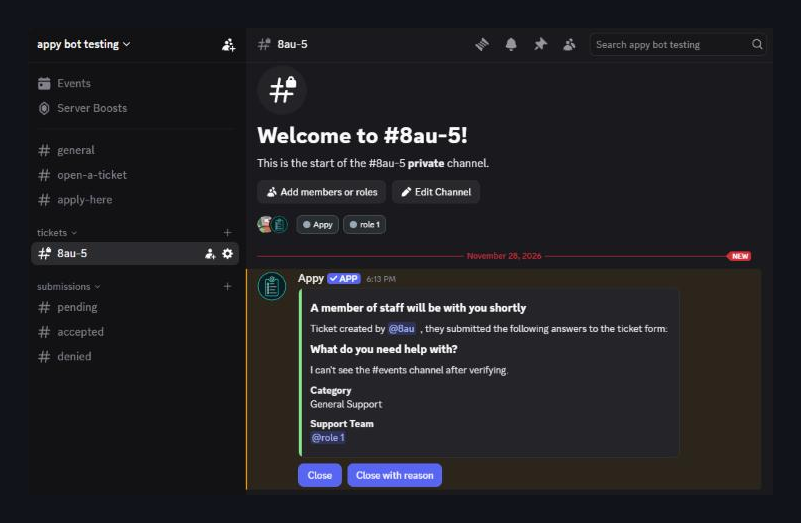
Testing as the server owner doesn't prove permissions are right, because owners can see everything. Use an alt account, or ask a friend without the support role to open a test ticket.
Commands your staff will use
/ticket close [reason]: close the ticket, optionally with a reason sent to the member./ticket claimand/ticket unclaim: take ownership of a ticket so two staff don't answer it at once./ticket user addand/ticket user remove: bring someone else into the ticket, like a second moderator or the player being reported./ticket rename: rename the channel, e.g. add-urgent./ticket move: move the ticket to another category, e.g. from Support to Billing./ticket open: open a ticket from a template without the panel, including on behalf of another member./ticket autoclose-exclude: stop a ticket from auto closing while you wait on something.
Other settings worth knowing
- Action on User Leave: what happens if the member leaves the server: nothing, close the ticket, or post a message in it.
- Rate Support Experience: lets members rate the help they got when the ticket closes.
- Ticket Claiming: adds a claim button so staff can assign tickets to themselves (more in our guide to running a support team in tickets).
- Store Transcript Images (premium): keeps images members sent in the ticket transcript.
- Ticket Quality AI (premium): if a member opens a ticket with no detail, Appy asks them to explain more before staff pick it up.
Troubleshooting
The button does nothing, or Appy says it can't create the channel. Appy needs Manage Channels and Manage Roles, and permission to see the ticket category. Check the category's permissions as well as the server-wide ones.
Staff can't see new tickets. Make sure their role is in Support Team Roles on that template, and that Appy's role is above the support role.
Members can't see the panel. @everyone (or your verified role) needs View Channel and Read Message History in the panel channel. Turn off Send Messages there so the panel doesn't get buried.
I changed the panel but Discord still shows the old one. Click Send panel again and delete the old message.
FAQ
Is Appy's ticket system free? Yes. Free servers get 2 ticket templates, 1 panel and 1 support role per template, with unlimited tickets. Premium adds more templates, panels and roles, select-menu panels, media in transcripts and Ticket Quality AI.
Can I have different staff for different ticket types? Yes. Each template has its own support roles, so "Billing" can go to admins while "General help" goes to all moderators.
How many tickets can one member open? Whatever you set in Max concurrent open tickets. Combine it with the opening cooldown to stop spam.
Can staff open a ticket for someone else?
Yes. Use /ticket open, pick the template and the member. The channel is named after the member, not you.
Where do closed tickets go? The channel is deleted and a log is posted in your ticket logging channel. You can also find past tickets under Tickets → Transcripts in the dashboard.
Want to see everything Appy's ticket bot can do? Check out the Discord ticket bot page.
